PowerShell 7 on Windows: UTF-8 Encoding and Default Terminal Setup
Codex and the PowerShell that ships with Windows don’t get along. The symptom I kept hitting was encoding: Codex would re-run the same command over and over, burning quota for nothing.
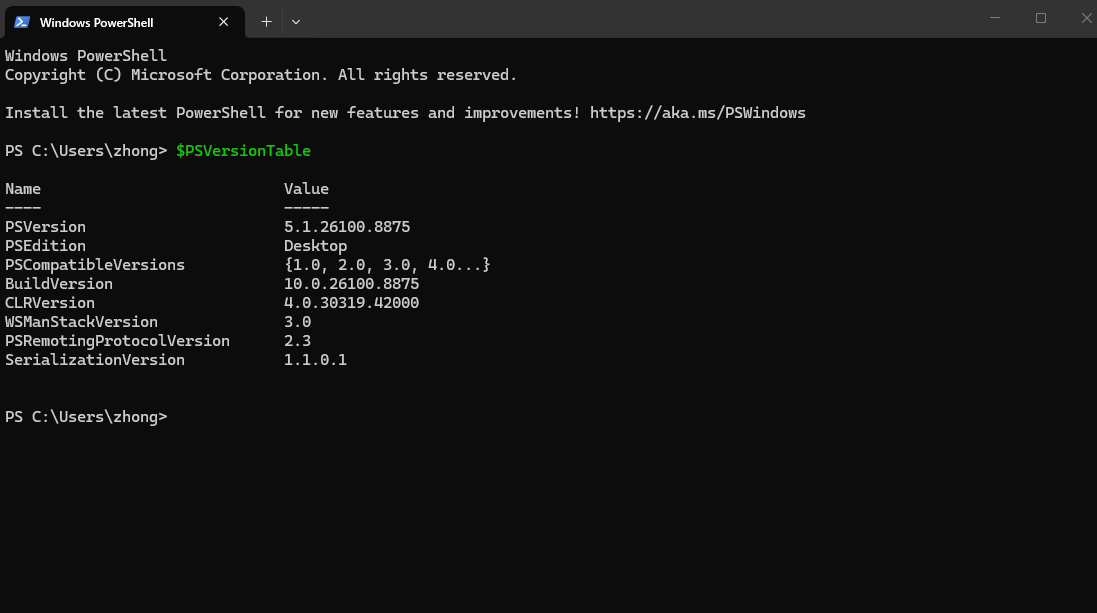
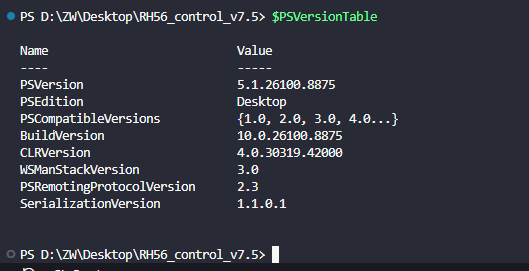
PowerShell 7 is more compatible and speaks UTF-8 natively, so I switched. Windows still ships 5.1 by default — check what you’re on first:
$PSVersionTable
Install PowerShell 7
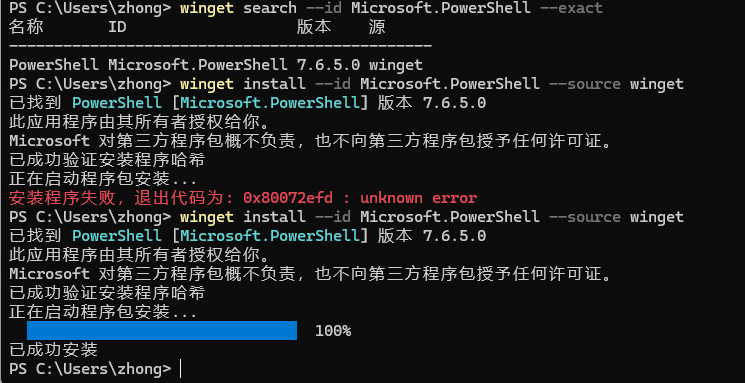
Search for the latest version with winget:
winget search --id Microsoft.PowerShell --exact
Then install:
winget install --id Microsoft.PowerShell --source winget
If the install fails, it’s usually the network — flip your VPN on or off and try again.
Or install from MSI
There’s also an MSI installer. Microsoft’s docs cover it here: Installing PowerShell on Windows | Microsoft Learn.
Direct download: https://github.com/PowerShell/PowerShell/releases/download/v7.6.6/PowerShell-7.6.6-win-x64.msi
Once it’s in, open pwsh and check the encoding. Note that powershell still opens 5.x while pwsh opens 7.x — the two versions live side by side, and the default terminal is still the old one. A fresh install isn’t on UTF-8 either; run chcp, and if it doesn’t print 65001, you’re not there yet.
Set UTF-8 Encoding
Run this in PowerShell (paste it in and hit enter):
$dir = Split-Path $PROFILE -Parent
if (!(Test-Path $dir)) { New-Item -ItemType Directory -Path $dir -Force }

@'
$utf8 = [System.Text.UTF8Encoding]::new($false)
[Console]::InputEncoding = $utf8
[Console]::OutputEncoding = $utf8
$OutputEncoding = $utf8
$PSDefaultParameterValues['Out-File:Encoding'] = 'utf8'
$PSDefaultParameterValues['Set-Content:Encoding'] = 'utf8'
$PSDefaultParameterValues['Add-Content:Encoding'] = 'utf8'
$env:PYTHONUTF8 = '1'
$env:PYTHONIOENCODING = 'utf-8'
'@ | Out-File -FilePath $PROFILE -Encoding utf8

. $PROFILE
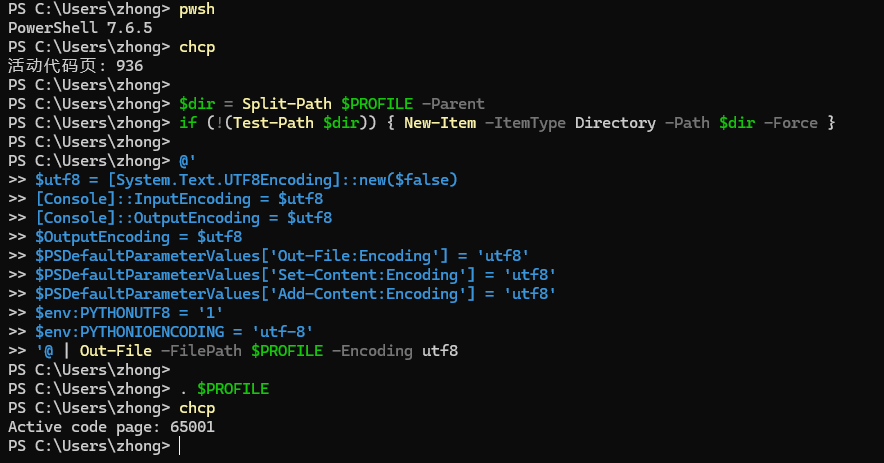
PowerShell now defaults to UTF-8, which cuts down on mojibake.
Make It the Default Terminal
Restart the terminal and open the menu on the right side of the tab bar:
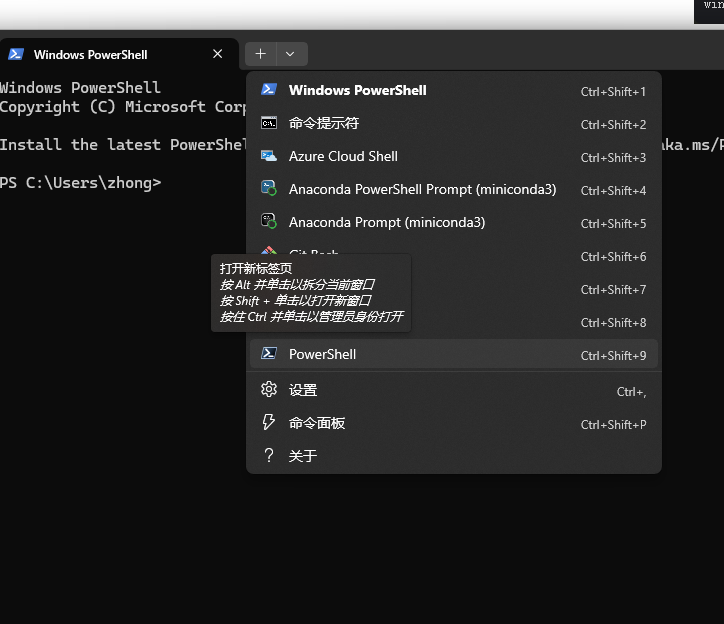
There’s a new PowerShell entry. The Windows PowerShell one is 5.1; PowerShell below it is 7.
Open Settings to change the default profile — pick the PowerShell entry at the bottom:
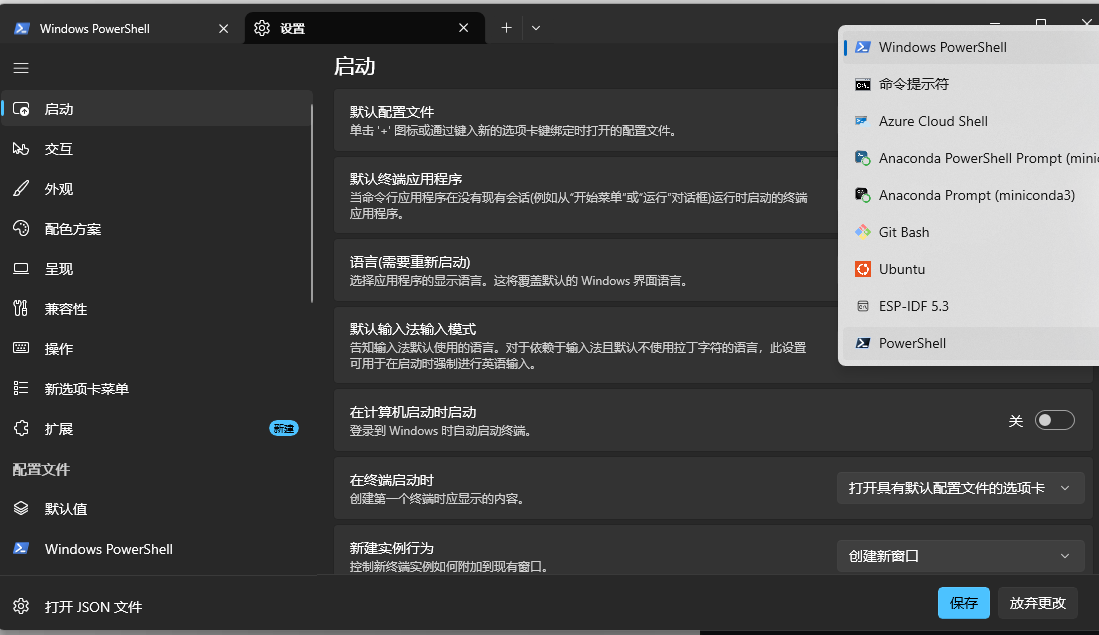
If you want to tell them apart at a glance, scroll down and rename the profile to PowerShell 7:
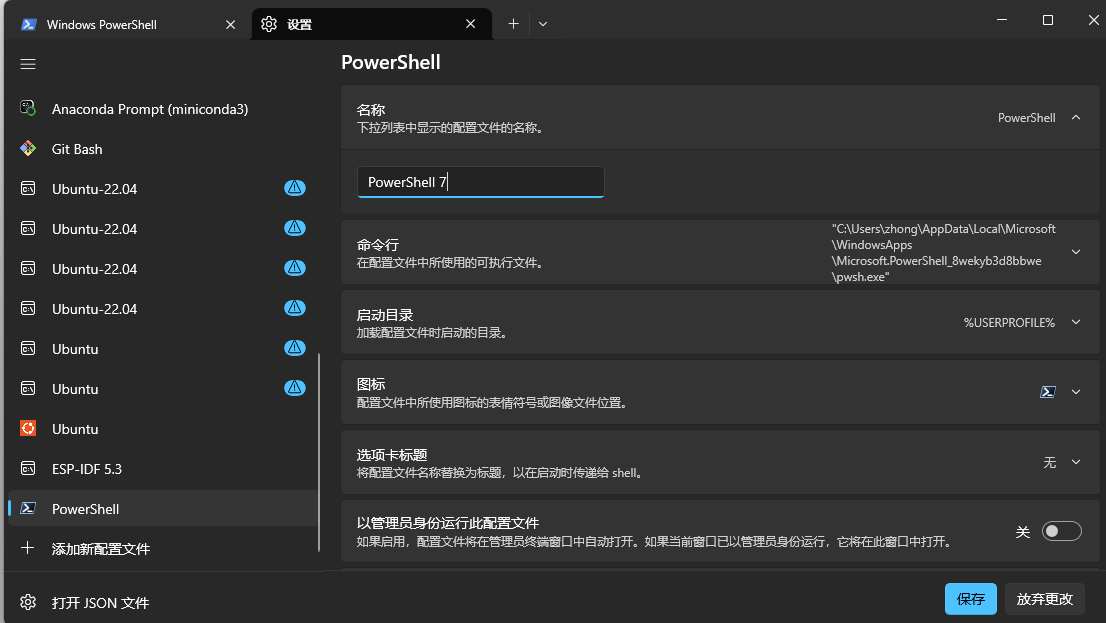
Save, restart the terminal, and you’re on PowerShell 7.
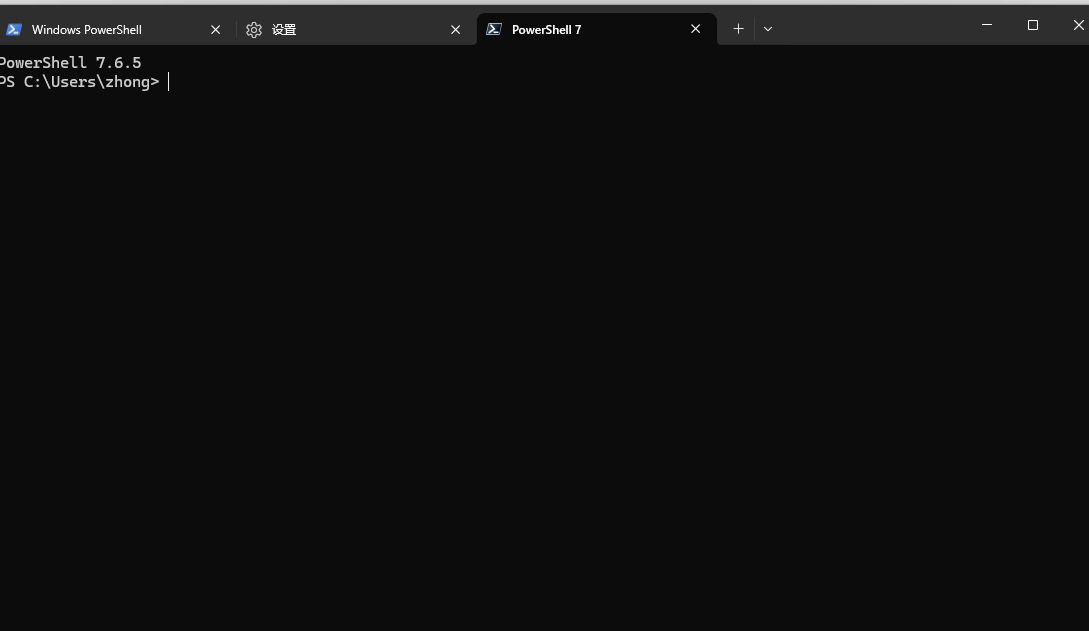
VS Code and Codex
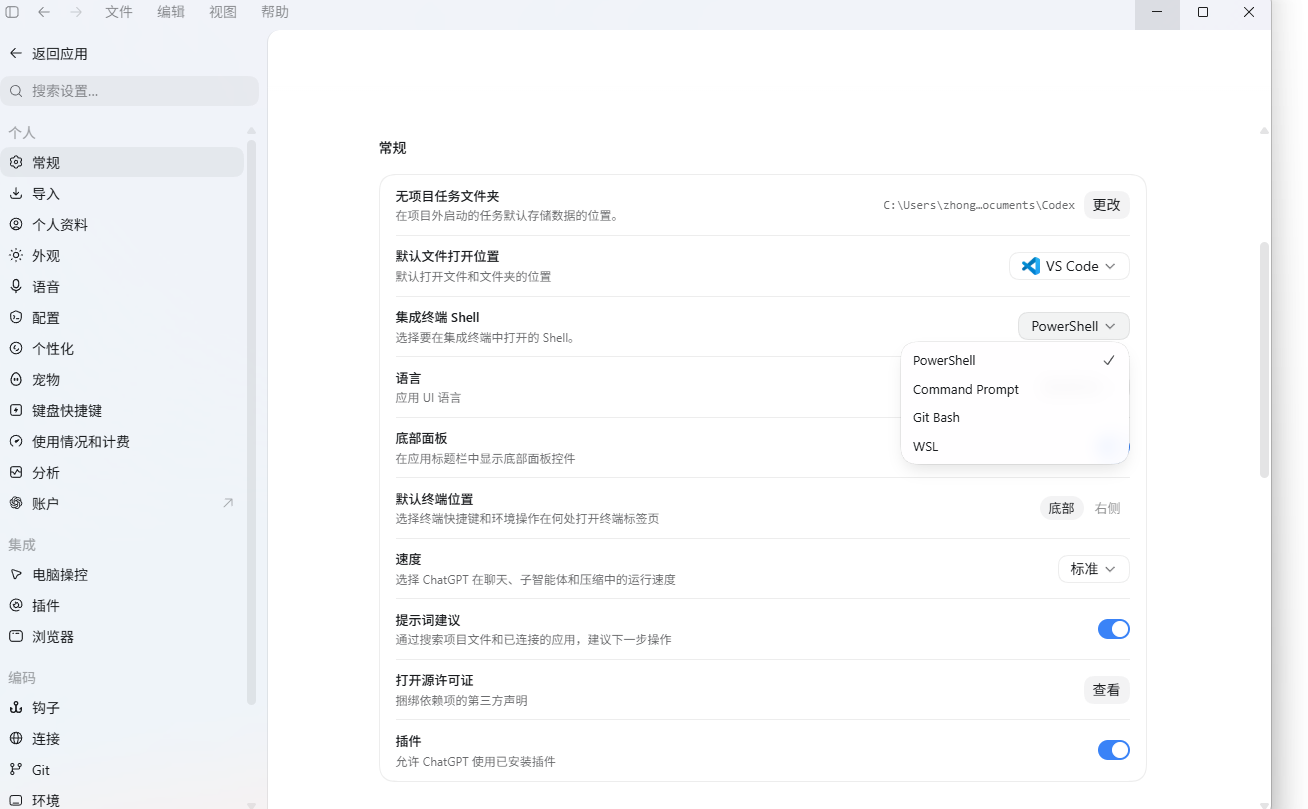
Codex usually needs nothing — it follows the system default, so if Settings already shows PowerShell, leave it.
VS Code does need a change. Run $PSVersionTable again to see what it’s using:
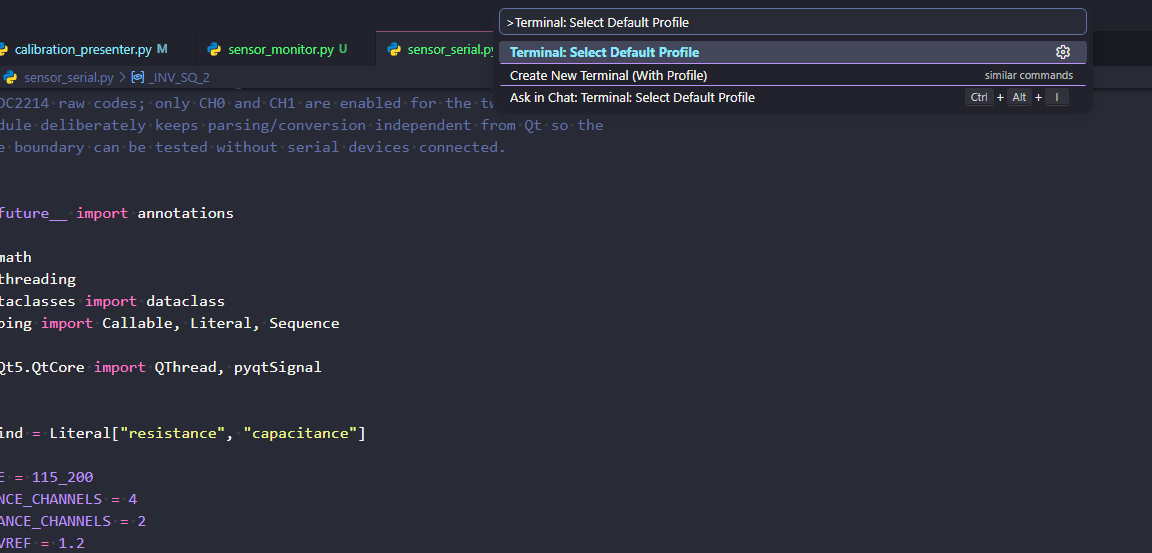
Hit Ctrl + Shift + P and type Terminal: Select Default Profile:
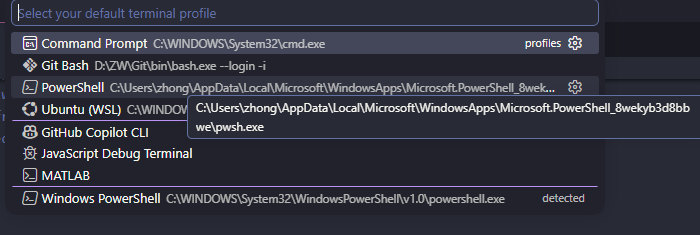
Pick the PowerShell entry without Windows in the name — the one whose path ends in pwsh.exe. If it’s not in the list, restart VS Code: if it was already running when you installed PowerShell 7, it won’t pick up the new profile on its own.
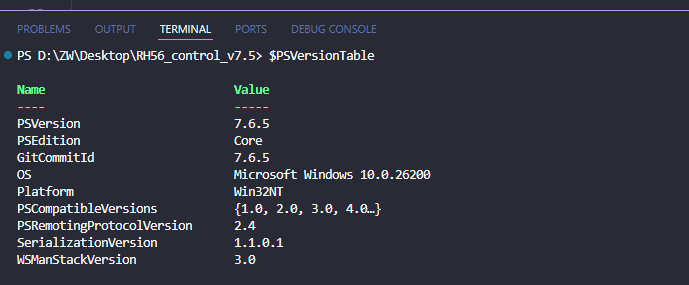
Open a fresh terminal (delete the old one from the panel’s top-right corner) and run $PSVersionTable one more time — the version has changed.
References
Enjoy Reading This Article?
Here are some more articles you might like to read next: